 Skip to content
Understanding M3U IPTV Files
What is an M3U IPTV File?
An M3U IPTV file is a text-based file format that contains a list of multimedia playlists. It is widely used in the Internet Protocol Television (IPTV) industry to stream live television channels and on-demand content. The M3U format allows users to access various channels through a single file, making it a convenient option for IPTV service providers and users alike.

The structure of an M3U file is straightforward. It typically begins with a header line that indicates the file type, followed by a series of entries that specify the location of the media streams. Each entry can include metadata such as the channel name, which is often obfuscated to protect copyright, and the URL of the stream. For example, a basic M3U entry might look like this:
“`
EXTM3U
EXTINF:-1, Channel Name
http://example.com/stream-url “`
This simplicity is what makes M3U files so popular in the IPTV community. Users can easily edit M3U IPTV files to add or remove channels, change stream URLs, or customize their viewing experience. This flexibility is essential for maintaining an up-to-date IPTV playlist, especially as channels frequently change or become unavailable.
Importance of M3U Playlists in IPTV Streaming
M3U playlists play a crucial role in the functionality of IPTV streaming. Here are some key reasons why they are important:
- Centralized Access: M3U files allow users to access multiple channels from various sources in one place. This centralization simplifies the user experience, as they do not need to switch between different applications or services.
- Ease of Editing: Users can easily edit M3U IPTV files to tailor their playlists. This includes adding new channels, removing outdated ones, or adjusting stream URLs. Such customization ensures that users have access to the latest content.
- Compatibility: Most IPTV players support M3U files, making them a universal choice for streaming. Whether you are using a smart TV, a streaming device, or a mobile application, M3U playlists are likely to be compatible.
- Dynamic Updates: Many IPTV service providers offer dynamic M3U playlists that automatically update. This means that users can receive new channels or content without needing to manually edit their files.
- Cost-Effective: Using M3U playlists can be a cost-effective solution for accessing a wide range of channels without the need for expensive cable subscriptions. Users can find various IPTV server M3U options that provide affordable access to live TV.
In summary, M3U playlists are essential for anyone looking to enhance their IPTV streaming experience. They provide a flexible, user-friendly way to access a wide array of channels and content. For more information on how to create and manage your own M3U playlists, visit My IPTV Smarters.
By understanding the significance of M3U IPTV files, users can make informed decisions about their IPTV services and enjoy a seamless streaming experience. Whether you are a casual viewer or a dedicated IPTV enthusiast, mastering M3U playlists is a valuable skill that can greatly enhance your viewing options. For further assistance or to explore various IPTV plans, check out My IPTV Smarters Plans or contact support via WhatsApp.
How to Edit M3U IPTV Files
Editing M3U IPTV files is a crucial skill for anyone looking to customize their IPTV experience. Whether you want to add new channels, remove outdated ones, or simply organize your playlist better, knowing how to edit these files can enhance your viewing experience significantly. In this section, we will explore a step-by-step guide to editing M3U files and discuss common tools that can help you in this process.
Step-by-Step Guide to Editing M3U Files
Editing an IPTV playlist M3U file may seem daunting at first, but it can be broken down into manageable steps. Here’s how you can do it:
- Locate Your M3U File: First, you need to find the file IPTV M3U that you want to edit. This file is usually provided by your IPTV service provider or can be downloaded from various sources.
- Choose an Editing Tool: Select a text editor that you are comfortable with. Popular choices include Notepad++ for Windows, TextEdit for Mac, or any code editor like Visual Studio Code. These tools allow you to view and edit the M3U file easily.
- Open the M3U File: Launch your chosen text editor and open the M3U file. You will see a list of channels, each starting with a
#EXTM3Utag followed by channel details. - Edit the Playlist:
- Add Channels: To add a new channel, insert a new line with the channel details in the following format:
#EXTINF:-1, Channel Name
http://link-to-channel-stream - Remove Channels: To remove a channel, simply delete the lines corresponding to that channel, including both the
#EXTINFand the stream URL. - Rearrange Channels: You can also rearrange channels by cutting and pasting the lines in your desired order.
- Save Your Changes: After making the necessary edits, save the file. Ensure that you keep the
.m3uextension intact. - Test the Edited Playlist: Load the edited M3U file into your IPTV player to ensure that all channels are working correctly. If you encounter issues, double-check the URLs and formatting.
By following these steps, you can effectively edit your IPTV server M3U files to suit your preferences.
Common Tools for Editing IPTV Playlists
When it comes to editing M3U IPTV files, having the right tools can make the process much smoother. Here are some commonly used tools:
- Notepad++: A free source code editor that supports various programming languages and is perfect for editing M3U files due to its user-friendly interface.
- TextEdit: For Mac users, TextEdit is a simple yet effective tool for editing text files, including M3U playlists.
- Visual Studio Code: A powerful code editor that offers advanced features like syntax highlighting and extensions, making it suitable for more complex edits.
- M3U Editor: Specialized software designed specifically for editing M3U files. It provides a graphical interface that simplifies the editing process.
- Online M3U Editors: Websites that allow you to upload your M3U file, make changes, and download the edited version. These can be handy if you prefer not to install software.
By utilizing these tools, you can easily manage your IPTV playlist M3U files and ensure a seamless viewing experience.
For more detailed information on managing your IPTV playlists, you can visit My IPTV Smarters or check out their M3U guide. If you need assistance, feel free to reach out via WhatsApp.
Benefits of Using M3U IPTV Playlists
Using M3U IPTV playlists offers a multitude of benefits that enhance your viewing experience. These playlists allow users to access a wide range of channels and customize their IPTV experience, making it a popular choice among streaming enthusiasts. Below, we delve into the specific advantages of utilizing M3U playlists, particularly focusing on how to edit M3U IPTV files for optimal performance.
Accessing a Wide Range of Channels
One of the most significant benefits of using M3U IPTV playlists is the ability to access a wide range of channels. With a single file, you can unlock numerous channels from various genres, including sports, movies, news, and entertainment. This versatility is particularly appealing for users who want to enjoy diverse content without the need for multiple subscriptions.
- Global Reach: M3U playlists often include channels from different countries, allowing you to explore international content. This is especially beneficial for expatriates or anyone interested in global programming.
- Cost-Effective: By using a single file IPTV M3U, you can save money compared to traditional cable subscriptions. Many IPTV services offer competitive pricing, making it an economical choice for viewers.
- Easy Updates: Many IPTV servers provide regular updates to their M3U playlists, ensuring that you always have access to the latest channels and content. This means you can enjoy new shows and events as they become available.
For more information on accessing channels, you can visit this link.
Customizing Your IPTV Experience
Another compelling advantage of using M3U IPTV playlists is the ability to customize your IPTV experience. This customization can significantly enhance your viewing pleasure and make it more tailored to your preferences.
- Personalized Playlists: You can easily edit M3U IPTV files to create personalized playlists that include only your favorite channels. This means you can remove unwanted channels and focus on what you love most.
- User-Friendly Interface: Many IPTV applications allow you to import M3U playlists seamlessly. This user-friendly approach makes it easy to manage your channels and navigate through your content.
- Flexible Viewing Options: With M3U playlists, you can choose to watch live TV, on-demand content, or even recorded shows, depending on the capabilities of your IPTV server. This flexibility allows you to watch what you want, when you want.
For those looking to get started with IPTV, check out this guide for installation tips.
In conclusion, the benefits of using M3U IPTV playlists are clear. From accessing a wide range of channels to customizing your viewing experience, these playlists offer a flexible and cost-effective solution for modern viewers. Whether you are looking to explore new content or streamline your favorite channels, M3U playlists are an excellent choice. For more details on M3U playlists and their advantages, visit this page.
If you have any questions or need assistance, feel free to reach out via WhatsApp.
Setting Up Your IPTV Server with M3U
Setting up your IPTV server with M3U is a crucial step in enjoying seamless streaming of your favorite channels. The M3U format is widely used for IPTV playlists, allowing users to access a variety of content through a single file. In this section, we will explore how to choose the right IPTV server and configure your M3U playlist effectively.
Choosing the Right IPTV Server
When it comes to selecting an IPTV server, several factors should be considered to ensure optimal performance and reliability. Here are some key points to keep in mind:
- Compatibility: Ensure that the server supports the file IPTV M3U format. This is essential for smooth integration and functionality.
- Performance: Look for servers that offer high uptime and fast streaming speeds. A reliable server minimizes buffering and enhances the viewing experience.
- User Reviews: Research user feedback and ratings. Platforms like My IPTV Smarters provide insights into the best IPTV servers available.
- Support: Choose a server that offers robust customer support. This is crucial for troubleshooting and resolving any issues that may arise during setup or usage.
By considering these factors, you can select an IPTV server that meets your needs and supports your IPTV playlist M3U effectively.
Configuring Your M3U Playlist on the Server
Once you have chosen the right IPTV server, the next step is to configure your M3U playlist. Here’s a step-by-step guide to help you through the process:
- Obtain Your M3U Playlist: First, you need to acquire your M3U playlist file. This file contains the links to the channels you want to stream. You can find various sources online or create your own using tools available on platforms like My IPTV Smarters.
- Upload the M3U File: Access your IPTV server’s control panel. Look for an option to upload or import your M3U playlist. This is typically found under the “Playlists” or “Channels” section.
- Edit M3U IPTV: If necessary, you can edit your M3U file to remove unwanted channels or add new ones. This can be done using a simple text editor. Ensure that the format remains intact to avoid playback issues.
- Save and Test: After uploading and editing your playlist, save the changes. It’s important to test the channels to ensure they are working correctly. You can do this by navigating to the streaming section of your IPTV server.
- Regular Updates: Keep your M3U playlist updated. Channels may change or become unavailable, so regularly check for updates to ensure you have access to the latest content.
By following these steps, you can effectively configure your IPTV server M3U and enjoy a wide range of channels. For more detailed guidance on installation and setup, visit My IPTV Smarters.
In conclusion, setting up your IPTV server with M3U is a straightforward process when you choose the right server and configure your playlist correctly. With the right tools and knowledge, you can enhance your streaming experience and access a world of entertainment. For additional resources and plans, check out My IPTV Smarters Plans or reach out for support via WhatsApp.
Troubleshooting Common Issues with M3U IPTV
When using M3U IPTV, users may encounter various issues that can disrupt their viewing experience. Understanding how to troubleshoot these common problems is essential for maintaining a seamless streaming experience. Below, we will explore two critical areas: fixing playback problems and ensuring compatibility with IPTV players.
Fixing Playback Problems
Playback issues are among the most common challenges faced by M3U IPTV users. These problems can stem from various sources, including network issues, incorrect file formats, or server problems. Here are some steps to help you troubleshoot and resolve playback problems effectively:
- Check Your Internet Connection: A stable and fast internet connection is crucial for streaming. Ensure that your connection is strong enough to support IPTV streaming. You can test your speed using online tools to confirm that it meets the required bandwidth for streaming.
- Verify the M3U File: Sometimes, the file IPTV M3U may be corrupted or improperly formatted. Make sure that the M3U file is correctly structured and contains valid links. You can edit M3U IPTV files using a text editor to remove any broken links or unnecessary entries.
- Update Your IPTV Player: Ensure that you are using the latest version of your IPTV player. Outdated software can lead to compatibility issues. Check the official website of your IPTV player for updates and install them as needed.
- Restart Your Device: A simple restart can often resolve playback issues. Turn off your device, wait a few moments, and then turn it back on. This can refresh the system and clear any temporary glitches.
- Test Different Channels: If specific channels are not working, it may be an issue with the IPTV server M3U. Try switching to different channels to see if the problem persists. If only certain channels are affected, the issue may lie with the server hosting those channels.
- Contact Support: If you continue to experience playback issues, consider reaching out to your IPTV provider’s support team. They can provide assistance and may have insights into server outages or other issues affecting service.
Ensuring Compatibility with IPTV Players
Compatibility is crucial when using M3U IPTV playlists. Not all IPTV players support the same formats or features, which can lead to issues when trying to stream content. Here are some tips to ensure compatibility:
- Choose the Right IPTV Player: Not all players are created equal. Research and select an IPTV player that is known for its compatibility with IPTV playlists M3U. Popular options include VLC Media Player, Kodi, and specific IPTV apps available on various platforms.
- Check Supported Formats: Ensure that your chosen IPTV player supports M3U files. Most modern players do, but it’s always good to double-check. Refer to the player’s documentation or website for a list of supported formats.
- Use Reliable Sources: When obtaining your M3U files, ensure they come from reputable sources. Using unreliable sources can lead to compatibility issues and poor streaming quality. For reliable M3U playlists, consider visiting My IPTV Smarters for verified options.
- Adjust Player Settings: Some IPTV players allow you to adjust settings that can enhance compatibility. Look for options related to buffering, video quality, and network settings. Adjusting these settings can improve your streaming experience.
- Test on Multiple Devices: If you have access to multiple devices, test your M3U playlist on each one. This can help identify whether the issue is device-specific or related to the playlist itself.
- Stay Updated: Regularly check for updates for your IPTV player. Developers often release updates to improve compatibility and fix bugs. Keeping your software up to date can prevent many common issues.
By following these troubleshooting tips, you can effectively address playback problems and ensure compatibility with your IPTV player. For more information on M3U IPTV and to explore various plans, visit My IPTV Smarters. If you need further assistance, don’t hesitate to reach out via WhatsApp.
Why Choose My IPTV Smarters for Your IPTV Needs?
When it comes to selecting the right IPTV service, My IPTV Smarters stands out as a premier choice for users seeking a reliable and feature-rich experience. With a focus on user satisfaction and cutting-edge technology, My IPTV Smarters offers a comprehensive solution for all your IPTV needs. Whether you want to edit M3U IPTV files or access a wide range of channels, this service has you covered.
Overview of My IPTV Smarters Services
My IPTV Smarters provides a robust platform that allows users to enjoy a seamless streaming experience. The service supports various formats, including file IPTV M3U, which is essential for users who want to customize their viewing experience. Here are some key features of My IPTV Smarters:
- User-Friendly Interface: The platform is designed with simplicity in mind, making it easy for users to navigate and find their favorite content.
- Multi-Device Support: Whether you’re using a smartphone, tablet, or smart TV, My IPTV Smarters is compatible with multiple devices, ensuring you can watch your favorite shows anytime, anywhere.
- High-Quality Streaming: Enjoy crystal-clear video quality with minimal buffering, thanks to the optimized IPTV server M3U technology that My IPTV Smarters employs.
- Custom Playlists: Users can easily create and manage their own IPTV playliste M3U, allowing for a personalized viewing experience tailored to individual preferences.
For more information on the services offered, visit My IPTV Smarters.
Subscription Plans and Features
My IPTV Smarters offers a variety of subscription plans designed to meet different user needs. Each plan comes with unique features that enhance the overall viewing experience. Here’s a breakdown of what you can expect:
| Plan Type | Features | Price |
|---|---|---|
| Basic Plan | Access to standard channels, M3U file support | €9.99/month |
| Premium Plan | Includes HD channels, custom playlists, and more | €14.99/month |
| Ultimate Plan | All features, including 4K streaming and support | €19.99/month |
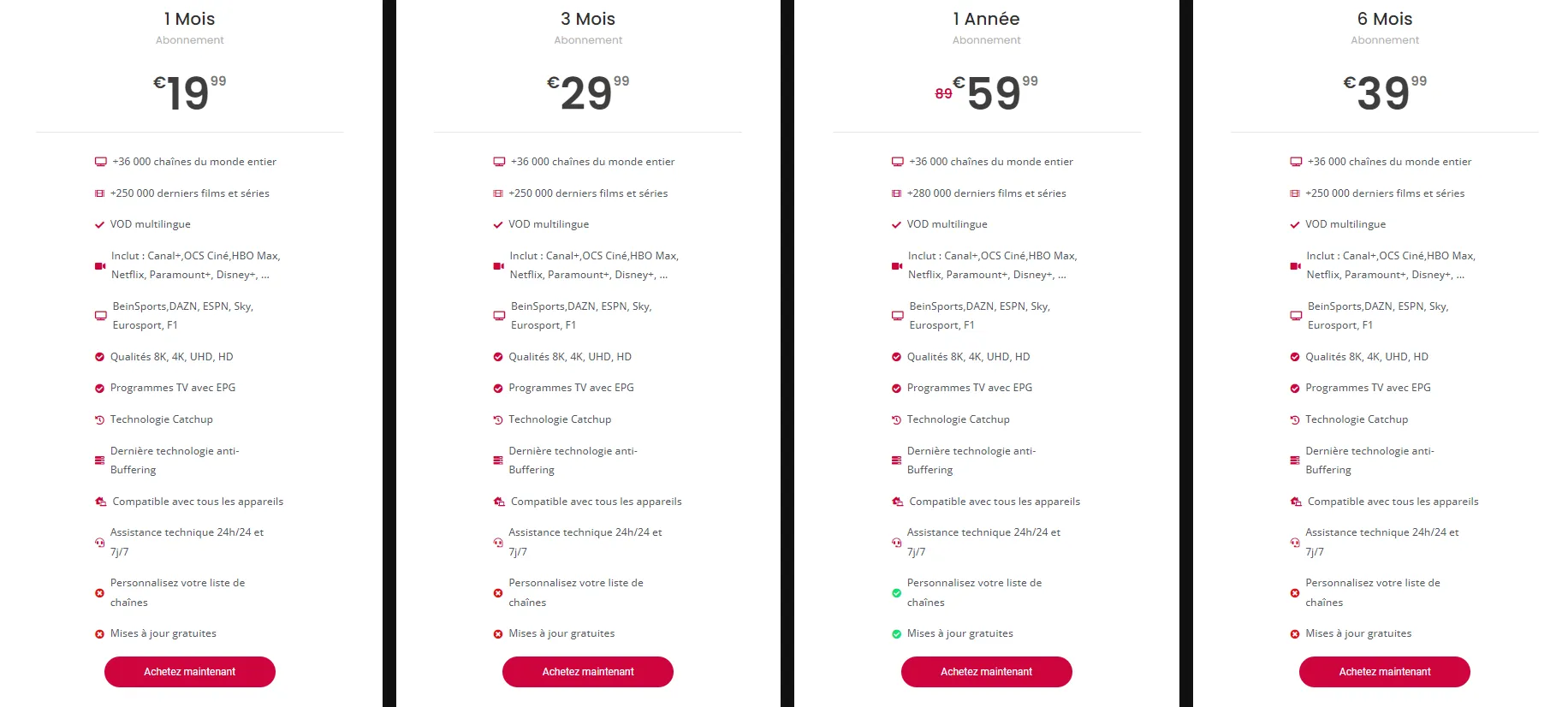
- Flexible Payment Options: Choose from monthly, quarterly, or yearly subscriptions to fit your budget.
- Free Trial: New users can take advantage of a free trial to explore the features before committing.
- 24/7 Customer Support: My IPTV Smarters provides round-the-clock support to assist with any issues or questions.
To explore the subscription plans in detail, check out My IPTV Smarters Plans.
In conclusion, choosing My IPTV Smarters for your IPTV needs means opting for a service that prioritizes quality, flexibility, and user satisfaction. With the ability to edit M3U IPTV files and access a wide range of channels, you can enjoy a tailored viewing experience that meets your entertainment needs. For more information on how to get started, visit My IPTV Smarters Installation Guide.
Conclusion and Next Steps
As we wrap up our exploration of how to edit M3U IPTV files, it’s essential to understand the practical steps you can take to enhance your IPTV experience. Whether you are a beginner or an experienced user, knowing how to manage your file IPTV M3U effectively can significantly improve your viewing pleasure.
How to Get Started with My IPTV Smarters
To begin your journey with My IPTV Smarters, follow these straightforward steps:
- Download the App: Start by downloading the My IPTV Smarters app from the official website here. This app is compatible with various devices, including Android, iOS, and Smart TVs.
- Obtain Your M3U Link: You will need an IPTV playlist M3U link to access channels. This link can usually be obtained from your IPTV service provider. Ensure that the link is valid and up-to-date.
- Add Your M3U Link: Open the My IPTV Smarters app and navigate to the settings. Here, you can add your IPTV server M3U link. Simply paste the link into the designated field and save your settings.
- Edit Your Playlist: If you want to customize your viewing experience, you can edit your M3U file. This includes removing unwanted channels or adding favorites. Use a text editor to make these changes, ensuring you maintain the correct format.
- Start Watching: Once your M3U link is set up and edited to your liking, you can start enjoying your favorite channels seamlessly.
By following these steps, you can easily get started with My IPTV Smarters and make the most of your IPTV service.
Final Thoughts on Editing M3U IPTV Files
Editing M3U IPTV files is not just about managing channels; it’s about enhancing your overall viewing experience. Here are some key takeaways:
- Flexibility: Editing your file IPTV M3U allows you to tailor your channel lineup according to your preferences. You can prioritize channels you watch most often and remove those you rarely use.
- Simplicity: The process of editing is straightforward. With basic text editing skills, you can make significant changes to your IPTV playlist.
- Resourcefulness: Utilize resources like this guide for more detailed instructions on managing your M3U files effectively.
- Support: If you encounter any issues, don’t hesitate to reach out for support. You can contact the My IPTV Smarters team directly via WhatsApp for assistance.
In conclusion, mastering how to edit M3U IPTV files can greatly enhance your IPTV experience. By following the steps outlined above, you can ensure that your viewing experience is tailored to your preferences, making it more enjoyable and efficient. For more information on IPTV services and plans, visit here. Happy watching!
